Introduction
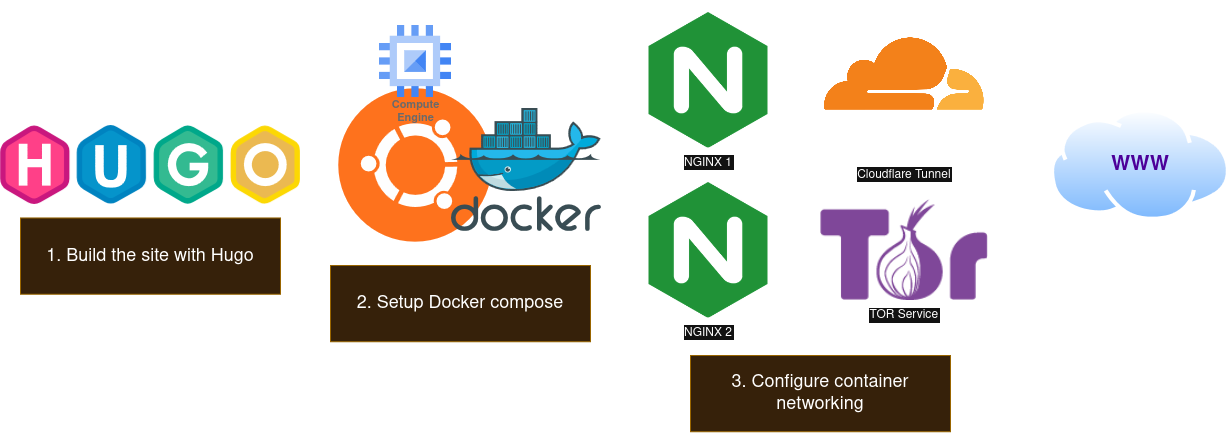
This guide is meant to be a top level overview on how to get a Hugo based static site set up on both the clear-web, and the dark-web. Both sites will host the exact same content, have custom URLs, and will be publically accessible. The intent is to string together some prior posts into a cohesive walkthrough, with less detail than the individual guides linked below.
Install Docker -> Hugo Setup -> Tor & Cloudflare Tunnel
Requirements
- Docker
- A domain name
- Purchase via your favorite domain name service, then transfer it to Cloudflare
- A VPS (Google Cloud Free Tier)
Suggestions
Folder Structure
├──websitestack
│  ├──compose.yaml
│  ├──hugo-generator
│  │  ├──hugo.yaml
│  │  └──[THE REST OF THE HUGO FOLDERS]
│  ├──torrc
│  ├──keys
└──└──sites
│  │  ├──tun
│  │  └──tor
Folder Setup
mkdir -p websitestack/{hugo-generator,torrc,keys,tor-site,cloudflare-site}
File Setup
touch websitestack/compose.yaml
touch websitestack/torrc
Place Key Files (Optional)
Permissions
chmod 700 ./keys
sudo chown -R root:root ./keys
1. Build Static Site
Refer to the prior post and to the Hugo documentation for the site setup instructions.
There is a one line configuration difference between the two sites: baseURL:.
Cloudflare Tunnel Version
- Update the
baseURL
hugo.yaml
baseURL: "https://[YOUR DOMAIN].SOMETHING"
languageCode: en-us
title: [TITLE]
theme: ["THEME_NAME"]...
- Generate the static site in the
hugo-generatordirectory
hugo build --minify --cleanDestinationDir -d ../cloudflare-site
Tor Hidden Service Version
A note from this blog post, by sethforprivacy, was essential to getting the correct configuration for hugo.yaml. The baseURL needs to be your .onion hostname.
If you generated a vanity url, cat the hostname file for your url. Otherwise follow the steps in #Troubleshooting to get an automatically generated url.
- Update the
baseURL
hugo.yaml
baseURL: "http://[ONION ADDRESS].onion"
languageCode: en-us
title: [TITLE]
theme: ["THEME_NAME"]...
- Generate the static site in the
hugo-generatordirectory
hugo build --minify --cleanDestinationDir -d ../tor-site
2. Setup Docker Compose
compose.yaml
#NGINX
services:
    tor-site:
        container_name: tor-site
        image: nginx:alpine
        cap_drop:
            - ALL
        cap_add:
            - CHOWN
            - SETGID
            - SETUID
        volumes:
            - ./sites/tor:/usr/share/nginx/html:ro
        networks:
        - tor_network

    cloudflare-site:
        container_name: cloudflare-site
        image: nginx:alpine
        cap_drop:
            - ALL
        cap_add:
            - CHOWN
            - SETGID
            - SETUID
        volumes:
            - ./sites/tun:/usr/share/nginx/html:ro
        networks:
            - cloudflared
#NETWORKING
    tor:
        container_name: webstack-tor
        volumes:
            - ./torrc:/etc/tor/torrc:ro
            - ./keys:/var/lib/tor/hidden_service/
        image: alpine:latest
        entrypoint: sh -c "apk add --no-cache tor && tor -f /etc/tor/torrc"
        security_opt:
          - no-new-privileges:true
        cap_drop:
           - ALL
        cap_add:
           - NET_BIND_SERVICE
        networks:
            - tor_network
        depends_on:
           - tor-site
    cloudflared:
        image: cloudflare/cloudflared:latest
        container_name: webstack-cloudflare
        restart: unless-stopped
        command: tunnel run
        networks:
            - cloudflared
        environment:
            - TUNNEL_TOKEN=${CLOUDFLARE_KEY}
        cap_drop:
            - ALL

networks:
  tor_network:
  cloudflared:
3. Configure Container Networking
Cloudflare Version
Get your TOKEN by clicking Add a Connector from the Cloudflare panel (networks>connectors). Ensure you add this to compose.yaml in place of [TUNNEL KEY]. Best practice is to use a .env file to store the variable.
Set up a new Tunnel following the documentation. In place of the Service Url, use the http type setting, and the url cloudflare-site:80.
Tor Version
Set up the torrc file:
# Standard Tor config
DataDirectory /var/lib/tor
# Define the Hidden Service
HiddenServiceDir /var/lib/tor/hidden_service/
HiddenServicePort 80 tor-site:80
Conclusion
Run:
docker compose up -d
You will likely encounter errors. Check the troubleshooting guide below for updates. These setups could just as easily be two separate stacks (one for cloudflare, one for tor). This guide is likely over complicated.
If you want even more overcomplication, think about how we could build a docker container for each of these sites, to decrease the number of files we pass through from the docker host.
Troubleshooting
- You don’t have Tor keys
- Finish the guide, the site will not work initially
- Once the Tor container runs successfully, it will generate keys for you
- In the project folder run
sudo cat keys/hostnameto see your .onion address - Set
baseURLto the .onion address - Rebuild the Hugo site
- Use
docker logs [CONTAINER NAME]to see what’s going on, start with the egress and work backwards